
8.1 KiB
Prospect
Also known as "The Cycle: Frontier".
Features
- Basic login with Steam.
- EULA acceptance.
- Tutorial.
- Single-player station (Season 2 and Season 3).
- Basic station functionality:
- Onboarding
- Talk to Badum
- Equip items
- Deploy to Fortuna
- Matchmaking
- Can deploy through matchmaking
- Items insurance
- Free loadouts (Season 3)
- Inventory and loadout
- Items can be equipped
- Items can be unequipped.
- Loadout is carried into matchmaking
- Items are automatically stacked
- Quests
- Quests can be accepted
- Quests can be removed
- Quest progress is tracked
- Quests can be completed
- Job boards
- Faction progression
- Season pass
- Character appearance and emotes
- Shops
- Items can be bought
- Items can be sold
- Season pass
- Quarters
- Generator
- Quarter upgrades
- Player balance
- K-Marks
- Aurum
- Insurance Tokens
- Onboarding
Running locally
Note
If you've already done all steps previously, you can skip to Step 7.
1. Prerequisites
Before you start, you'll need the following software downloaded and installed:
-
Latest
Prospect.Server.Apifrom the Releases section -
.NET Runtime 8.0 installed.
-
ASP.NET Core 8.0 installed.
-
A compatible The Cycle: Frontier game client. The server works with:
-
The latest version from Steam.
Warning
The latest version of The Cycle: Frontier does not work with Windows 11 24H2!
-
Season 2 client downloaded from SteamDB using a depot downloader. For example, version 2.7.2.
-
2. Unpack Prospect.Server.Api
Use your favorite ZIP archiver and unzip the Prospect.Server.Api.zip downloaded from this repository.
3. Patch the hosts file
To be able to connect to the locally running server, you must replace the IP address of 2EA46.playfabapi.com that the game uses. Do the following:
-
Open Notepad as Administrator.
-
Click File > Open... and select
C:\Windows\System32\drivers\etc\hosts. -
At the end of the file, add
127.0.0.1 2EA46.playfabapi.comon a new line. Do not add the#character!
4. Generate and import SSL certificate
Important
Do not share the generated certificate! Generated certificate includes a private key that may be used to generate other certificates and compromise your security.
A connection to the server is served over a secured connection. The server uses self-signed certificate that must be added to trusted authorities in order for the game to successfully communicate with the local server. Do the following:
-
Open the folder with
Prospect.Server.Api. -
Double-click
generate_ssl.exe.certificate.pfxwill appear in the same folder. -
Double-click
certificate.pfx. The Certificate Import Wizard will open:-
Select Current User under Store Location and click Next.
-
Leave File to Import unchanged and click Next.
-
Leave Password empty and click Next.
-
Select Place all certificates in the following store > Browse.... Choose Trusted Root Certification Authorities and click OK. Click Next.
-
Click Finish. A Security Warning popup may appear, make sure it specifies
2EA46.playfabapi.comcertification authority and click Yes.
-
5. Add steam_appid to the game
-
Open the folder with The Cycle: Frontier and navigate to Prospect > Binaries > Win64.
-
Right-click in the folder > New > Text Document, and name it
steam_appid. -
Open
steam_appidand enter480. -
Save and close the file.
6. Create a game shortcut with specified arguments
-
Open the folder with The Cycle: Frontier and navigate to Prospect > Binaries > Win64.
-
Right-click
Prospect-Win64-Shipping.exe> Create Shortcut. -
Right-click the created shortcut > Properties.
-
In the Target field, add the following parameters after the quote
-empty -server -log -windowed -noeac -nointro -steam_auth PF_TITLEID=2EA46. Note the space after the quote. -
Move the shortcut to desktop.
7. Run the server
Now you are all set! Open the folder with Prospect.Server.Api and run Prospect.Server.Api.exe. It will open a console if it runs successfully.
Important
Do not close the console when you run the game.
If the console does not open, make sure you have .NET Runtime 8.0 and ASP.NET Core 8.0 installed.
8. Run the game
Once the server is running, make sure that Steam is running and open The Cycle: Frontier using the shortcut you've created before.
Troubleshooting and FAQ
How to remove the certificate?
If you've installed the certificate for the Current User:
-
Open Start and enter
certmgr.msc. -
Expand Trusted Root Certification Authorities and select Certificates.
-
Find
2EA46.playfabapi.com, right-click it > Delete.
If you've installed the certificate for the Local Machine, repeat the same steps but instead open certlm.msc.
generate_ssl.exe is flagged as a virus
generate_ssl.exe is a Python application packed with PyInstaller and some anti-viruses may flag it as a virus.
This application is a simple certificate generator and you can find its source code in utils/generate_ssl.py.
Body parts are missing with Season 3 client
Currently, the server loads body part IDs for Season 2 by default, so this is expected. You can fix this by going to station and changing your character appearance. This will store the updated body part IDs for your character.
Prospect.Server.Api does not start
Make sure you have .NET Runtime 8.0 and ASP.NET Core 8.0 installed.
Login Failed. Error code: 3
Make sure that:
- You have Steam running.
- You have created and saved the
steam_appidfile as described in step 6. - The
steam_appidfile type is "TXT File".
Login Failed. Error code: 5
Make sure that:
Prospect.Server.Apiserver is running.- The
C:\Windows\System32\drivers\etc\hostsfile contains127.0.0.1 2EA46.playfabapi.comand that the file is saved.
If the server works and the hosts file is saved, Alt+Tab to a game console that opens when you start the game and check for the following:
-
libcurl error 7 (Couldn't connect to server)- indicates that theProspect.Server.Apiis not running.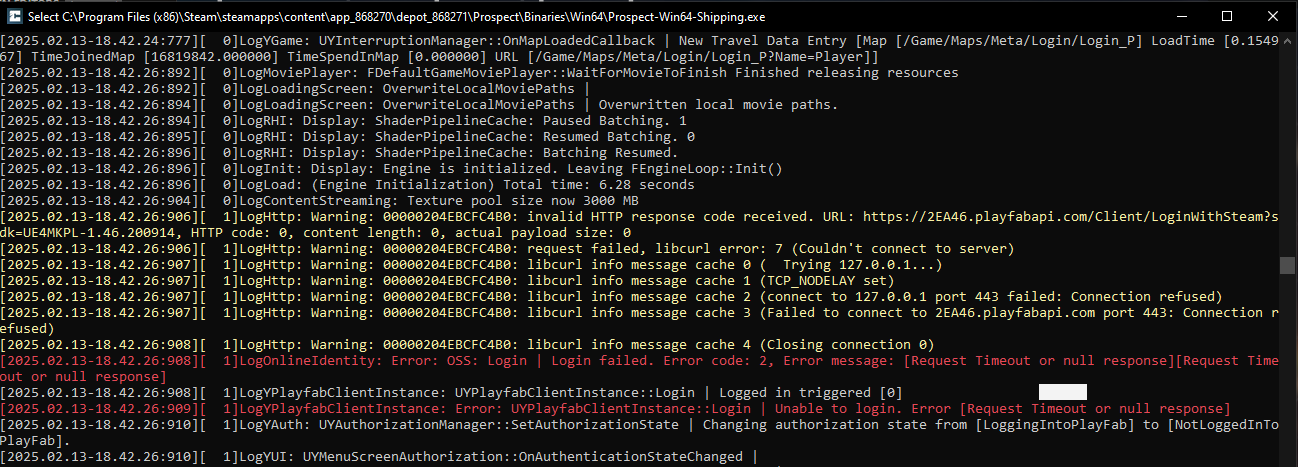
-
InvalidAPIEndpoint- indicates that thehostsfile was not updated properly.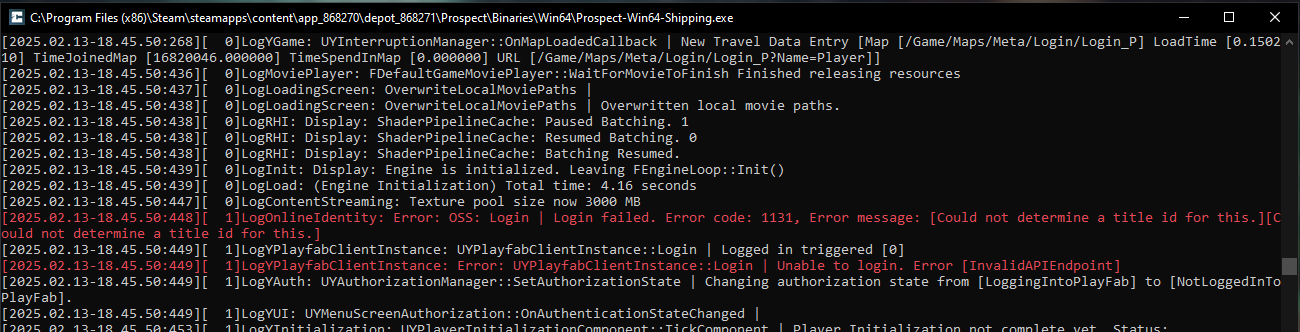
-
libcurl error 60 (Peer certificate cannot be authenticated with given CA certificates)- indicates that the certificate was not installed correctly. Make sure that the certificate is present incertmgr.mscand there is only one certificate. Try removing the certificate and importing it again by following step 4.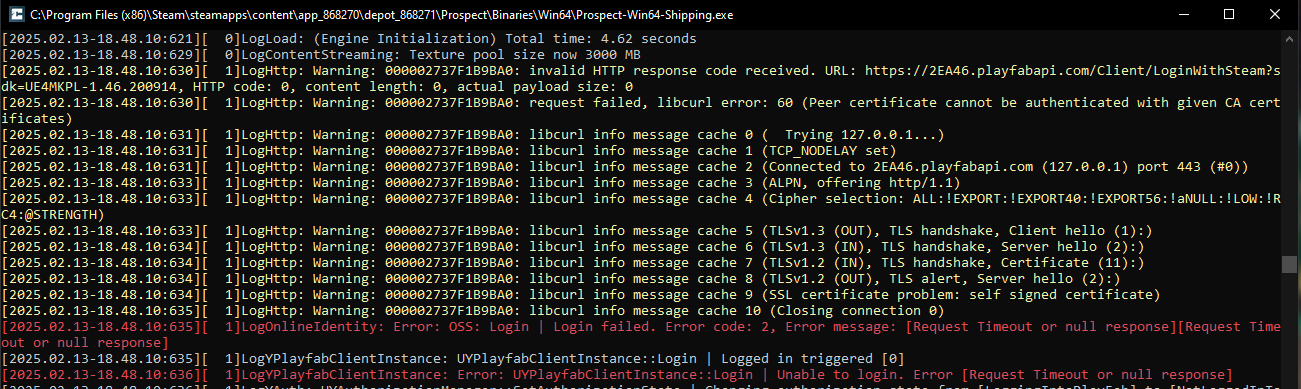
-
HTTP error code 500- usually indicates that MongoDB is not running. Make sure that MongoDB is installed and and thatMongoDB Serveris running inservices.msc.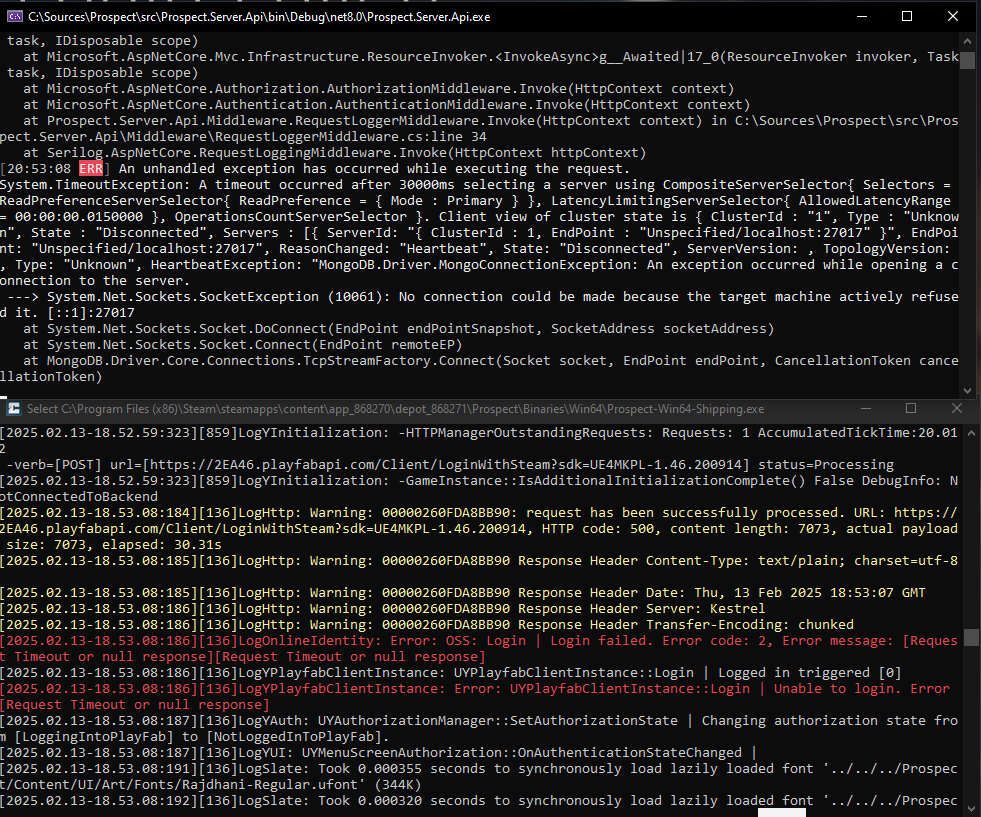


Development
TBD